When website text is hard to read, the first suspect is almost always the font. You swap one typeface for another, then a third, and the page still feels tiring to look at. That pattern usually means the typeface was never the problem. Readability comes from several things working together: the contrast between text and background, the weight and size at which the font renders, the spacing between lines, the width of the column, and how the colors look to readers whose vision differs from yours. Below is the order in which I check each of them, and what to change when one fails.
What Makes Website Text Hard to Read When the Font Is Not the Cause
In most cases, the reason website text is hard to read is contrast, weight, size, spacing, or line length rather than the typeface itself. The font controls the shape of each letter. Everything else controls how much effort the eye needs to turn those shapes into words, and that effort is what readers describe as “hard to read.”
A well-drawn font set in pale gray at 14 pixels with tight line spacing will tire people out. A plain system font set in dark text at a comfortable size with open spacing will not. This is why changing the font often produces no improvement, or a small one that fades once the novelty wears off.
There is also a perception gap between the person who built the page and the person reading it. Designers and developers usually work on large, bright, high-resolution monitors in good lighting, and they already know what the text says. Visitors read on phones outdoors, on older laptops, or at the end of a long day. A page that looks crisp on your screen can be tiring on theirs. So the useful question is not whether the font looks good, but whether the text stays comfortable under poor conditions.
Each cause below can be measured or tested, and I have listed them in the order that usually saves the most time.
How to Check Whether Your Text Contrast Is Too Low
Text contrast is too low when the ratio between the text color and its background falls under 4.5:1 for normal text or 3:1 for large text, which are the minimums in WCAG 2.1 Success Criterion 1.4.3. Large text means roughly 24 pixels, or about 19 pixels when bold. Anything smaller counts as normal text and needs the higher ratio.
The ratio is calculated from the relative luminance of the two colors, so you cannot judge it reliably by eye. Hex values that look close can land on either side of the line. For example, #777777 on white works out to about 4.48:1, which narrowly fails, while #767676 on white gives about 4.54:1 and passes. The W3C also states that these thresholds are applied without rounding, so a result of 4.499:1 does not meet 4.5:1. Meanwhile, #999999 on white is roughly 2.85:1, which fails clearly and is a common choice for captions and secondary text.
To test a pair, enter the foreground and background hex values into a color contrast ratio checker and read the number it returns. It takes a few seconds per pair. According to the W3C’s explanation of the minimum contrast criterion, the 4.5:1 figure is meant to account for the contrast lost through moderately low visual acuity, color vision deficiencies, and aging. It is a floor that covers a wide range of readers, not an arbitrary number.
Passing is the minimum, not the target for comfort. Body copy at 4.6:1 meets the standard, but it will still feel faint next to text at 10:1 or higher. For long paragraphs, aim well above the threshold, and keep borderline pairs for large headings.
Why Thin Font Weights Look Fainter Than Their Contrast Ratio Suggests
A thin font weight can fail visually even when the color values pass a contrast test. The ratio assumes solid color, but thin strokes at small sizes are often a pixel or less wide, so their edges blend with the background and the text renders lighter than the color you specified.
This is common with weights of 300 or lower, which became popular with modern sans-serif families and variable fonts. A light weight looks elegant in a design mockup at large sizes. At 15 or 16 pixels on a standard-density screen, the strokes thin out and the letters look washed. The same page can look fine on a high-density laptop display and weak on an older monitor, because pixel density and the operating system’s text rendering both affect how thin strokes are drawn.
The fixes, in rough order of effort, are these. Set body text to a regular weight of 400. If the design needs a light weight, increase the size and darken the color to compensate. Reserve lighter weights for large display headings. If you use a variable font, check which weight value the stylesheet actually applies, because the default can be lighter than you expect. Also confirm that the weight you declared is actually loaded. When a requested weight is missing, the browser may substitute a nearby one, which changes the look without any visible error.
Test on at least one low-density screen before deciding the weight is fine.
How Font Size and Line Height Change Reading Comfort
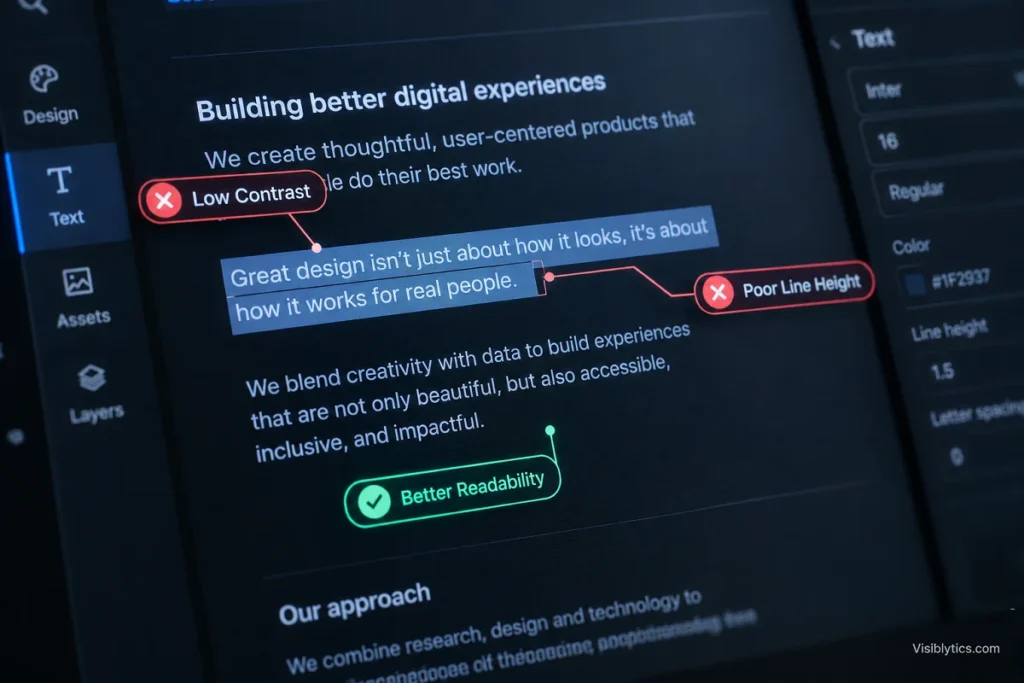
Body text is comfortable for most readers at 16 pixels or larger with a line height of about 1.5 times the font size. Below that, readers slow down, zoom in, or leave. These are common web typography baselines rather than hard rules, but they hold up well in practice.
Size has a catch. The same pixel value does not produce the same apparent size across fonts, because typefaces differ in x-height, the height of lowercase letters relative to capitals. A font with a small x-height at 16 pixels looks smaller than one with a large x-height at the same setting. So if you changed fonts and kept the size, the new font may have introduced a size problem rather than a style problem. Compare fonts by how large the lowercase letters look, not by the number in the stylesheet.
Line height matters because the eye has to travel from the end of one line to the start of the next. When lines sit too close, the descenders of one line crowd the ascenders of the next and the reader loses their place. Very loose spacing causes the opposite problem, where lines stop reading as a block. For body text, a value between 1.4 and 1.6 works for most typefaces. Headings can sit tighter.
WCAG also has a text spacing criterion that expects content to stay usable when a reader raises line height to 1.5 times the font size, paragraph spacing to twice the font size, and letter and word spacing by small amounts. Layouts with fixed heights or clipped containers often break under those settings, which is a good reason not to hard-code box dimensions around text. Using relative units such as rem for font sizes also lets readers who raise their browser’s default size get larger text instead of being overridden.
Why Long Lines of Text Make Paragraphs Hard to Follow
Lines longer than about 75 to 80 characters make paragraphs harder to follow, because the eye has to travel a long way back to find the start of the next line. Typographers have long suggested a range of roughly 45 to 75 characters for body text, and WCAG’s Visual Presentation criterion sets 80 characters as the upper limit at its AAA level.
Wide monitors make this easy to get wrong. A content area that looks reasonable on a laptop can stretch to 150 characters or more on a large display if nothing limits the column. The fix is a maximum width on the text container. The ch unit is convenient for this, since one ch is about the width of a zero in the current font. Setting max-width: 65ch on article text keeps line length steady whatever font you use.
The opposite problem exists on small screens. Columns narrower than about 30 characters produce choppy lines with frequent breaks, especially when text sits beside an image or inside a narrow card. If that happens, stack the elements instead of squeezing them.
Alignment adds to this. Justified text can create uneven gaps between words, sometimes called rivers, which make a paragraph look patchy and slow reading. Left-aligned text with a ragged right edge gives the eye a consistent starting point on every line, which is why it is the safer default on the web.
How Backgrounds, Images, and Overlays Create Uneven Contrast
Text placed over a photo, gradient, or textured background has no single contrast ratio, because the background changes behind every word. A line can pass at one end and fail at the other. This is one of the most common reasons website text is hard to read on hero sections and banners, even when the font and size are fine.
To test it, find the lightest and darkest areas behind the text and check the text color against each one. If the worst case fails, the line fails for some readers. A color contrast checker is useful here, because you can sample the hex value of the problem area and compare it with the text color directly.
Three fixes work reliably. Put a solid or semi-transparent dark layer between the image and the text so the background becomes more uniform. Move the text onto a solid panel placed over the image. Or choose a different crop or image where the text area is naturally even. A text shadow can soften edges, but it should support a sound contrast ratio, not replace one.
Transparency causes quieter versions of the same issue. Text set with partial opacity, or colors defined with an alpha channel, blend with whatever sits behind them, so the final color depends on the background. The same applies to hover states, buttons that change color, and sections that switch background as the reader scrolls. Check the final rendered colors, not the values written in the stylesheet.
Why Gray Secondary Text Draws So Many Readability Complaints
Light gray secondary text, such as captions, timestamps, form hints, breadcrumbs, and footer links, is where many sites quietly fail contrast requirements. These elements feel less important, so they get lighter colors, and the combined effect is a page where everything except the main paragraph is faint.
Several of these elements fall under the same rule as body text. The W3C notes that the minimum contrast criterion applies to placeholder text and to text revealed on hover or keyboard focus. Placeholder text in form fields is a frequent offender, since many themes set it to a pale gray close to the field background. Inactive controls are exempt under the criterion, but a label that merely looks secondary is not inactive and still needs to pass.
The simplest approach is to set a floor for gray in your design system. On a white background, #767676 is about the lightest neutral gray that still passes at 4.5:1, and #595959 reaches roughly 7:1. Decide on two or three approved grays, check each against every background it will appear on, and replace one-off values across the stylesheet. Checking a handful of approved pairs once is faster than checking every element repeatedly.
Dark sections need the same attention. Gray text on a dark background is just as easy to lose, and footers and cookie banners often carry their own colors that never got reviewed.
How Color Blindness Changes What Readers See in Your Text
Color vision deficiency changes how some readers see hue, and it can make text from certain color pairs hard to read even when the colors look clearly different to you. A noticeable share of readers are affected, and it is more common in men than in women.
Contrast ratios are based on luminance, not hue. Two colors can have very different hues and almost the same luminance, such as a mid-tone red on a mid-tone green. To a person with typical color vision they look distinct. To a person with red-green color blindness they can look nearly identical, and the text seems to dissolve into the background. A hue difference alone does not make text readable. A brightness difference does.
A color blindness simulator lets you view your page roughly the way those readers might. Run your main templates through the common types, particularly red-green deficiencies, and look for text that loses separation from its background. Pay extra attention to colored text on colored backgrounds, charts with colored labels, and any text over a gradient that passes through several hues.
Color alone should also not carry meaning. If links are distinguished from body text only by color, an underline or another cue helps. Error messages in red text should come with an icon or a written label. Problems like these often surface as readability complaints from readers who cannot tell that a word was meant to stand out.
Simulators approximate color vision deficiency and do not replace testing with real people, but they find problems early and cost little.
Why Dark Mode and Screen Conditions Expose Weak Text Contrast
Text that seems fine at your desk can fail under glare, low screen brightness, power-saving modes, or dark themes, because those conditions reduce effective contrast. A page with weak contrast hides the problem on a bright, well-set monitor and exposes it everywhere else.
Phones are the clearest case. Outdoors, with the screen competing against sunlight, mid-gray text on white can nearly disappear. Night modes shift colors and lower brightness. Older or lower-quality displays show less difference between close shades. Readers with aging eyes also need more contrast than younger readers, which is part of why the 4.5:1 minimum exists.
Dark mode brings its own errors. A common one is carrying light-theme grays into the dark theme, which produces dark gray text on a darker background. Another is using pure white text on pure black, which can create glare and a halo effect for some readers. Slightly softened colors are often easier to read over long passages. The practical rule is to treat the dark theme as a separate design with its own contrast checks, not as an inverted copy of the light one.
One useful test costs nothing: open the page on a phone, lower the brightness, and take it into daylight. If you struggle to read it, your visitors will too.
A Practical Order for Fixing Hard-to-Read Website Text
When website text is hard to read, fix it in this order: contrast, weight, size, line height, line length, backgrounds, color-only cues, and the font last. This sequence starts with the changes most likely to help and least likely to alter the design.
- Measure body text and secondary text. Run each text and background pair through a contrast tool and fix anything under 4.5:1 for normal text.
- Set body text to a weight of 400 unless the font needs a heavier value.
- Raise body size to 16 pixels or more, and compare lowercase letter height if you changed fonts.
- Set paragraph line height to about 1.5.
- Limit paragraph width to roughly 65 characters.
- Check text over images, gradients, and overlays at the lightest and darkest points.
- Review the page in a color blindness simulation and confirm that no meaning depends on color alone.
- Test the dark theme, a low-density screen, and a phone in daylight.
- Only after all of that, reconsider the typeface.
A starting point in CSS looks like this:
body {
  color: #1f2933;
  background: #ffffff;
  font-size: 1rem;
  font-weight: 400;
  line-height: 1.5;
}

.article-text {
  max-width: 65ch;
}
Treat these values as a baseline to adjust, not a fixed recipe. Re-run the contrast checks after any change, since adjusting one color can affect another pair. If a visitor reports difficulty, ask which device and lighting conditions they were using, because the cause may sit there rather than in the design. After the changes are live, read the page yourself on a different device from the one you built it on, since a fresh screen is often where the remaining weak spots show.