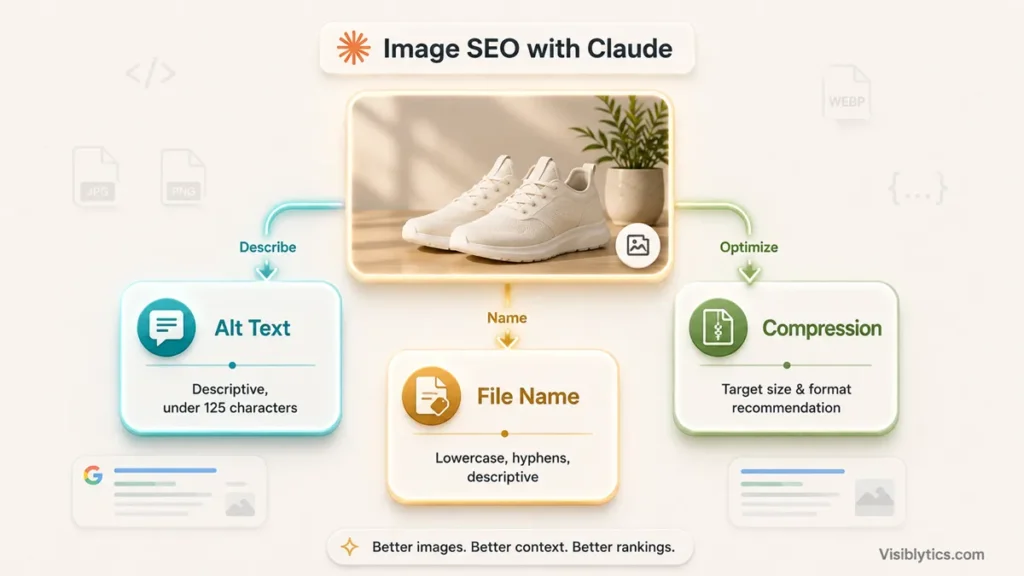
The fastest way to use Claude for image SEO is to give it the actual image (or a clear description of it), the page topic, and a strict format for what you want back, then ask for three things separately: alt text, a file name, and a compression recommendation based on where the image sits on the page. Claude AI prompts for image SEO work best when you treat each of these as its own small task instead of one vague request, because alt text, file naming, and compression follow different rules and get judged by different systems.
I write and clean up image SEO across client sites regularly, and Claude has become one of the faster parts of that workflow, mainly for the writing piece. It will not compress a file for you or check whether your CDN is serving WebP correctly, but it is good at the two things that used to eat the most time: writing alt text that actually describes the image instead of stuffing a keyword into ten words, and turning a messy upload filename into something a crawler can parse. This guide gives you the prompts I actually use for each part of image SEO, plus where Claude falls short and you still need a separate tool.
What Claude Can and Cannot Do for Image SEO
Claude can write descriptive alt text, suggest clean file names, and explain compression tradeoffs in plain language, but it cannot compress your actual image files or verify what format your site is serving in production. If you upload an image directly into Claude (its current versions can read images), it can describe what it sees with reasonable accuracy and turn that into alt text. What it cannot do is process the binary file itself, so compression, resizing, and format conversion still need a dedicated tool.
This matters because a lot of people expect an AI chat tool to be a one-stop image optimizer. It is not. Think of Claude as the part of the workflow that handles language: writing, renaming, and explaining. The mechanical part, actually shrinking the file, still needs software built for that job.
Claude AI Prompts for Writing Alt Text
Good alt text describes what is in the image for someone who cannot see it, and includes a relevant keyword only where it fits naturally. Claude AI prompts for image SEO that just say “write alt text for this image” tend to produce something generic. Being specific about length, tone, and what not to do gets noticeably better results.
Prompt for a single image, with the image uploaded:
Write alt text for this image for a webpage about [topic]. Describe what is actually visible, keep it under 125 characters, and include the keyword [target keyword] only if it fits naturally without forcing it. Do not start with 'image of' or 'picture of'.Prompt when you cannot upload the image, only describe it:
Write 3 alt text options for an image showing [detailed description: what's in the frame, colors, action, context]. This is for a page about [topic] targeting the keyword [keyword]. Keep each option under 125 characters and make them sound like plain descriptions, not keyword strings.Prompt for a batch of images on one page:
I'm going to describe several images from one page. For each, write alt text under 125 characters that describes the image and fits the page topic of [topic]. Do not reuse the same keyword phrasing in every single one, vary the language naturally. Here are the images: [list descriptions]Prompt for decorative images:
This image is purely decorative, a [description, e.g. background pattern, divider line]. Confirm whether it should have empty alt text (alt="") and explain briefly why, based on standard accessibility guidance.That last one matters more than people think. Not every image needs a keyword-loaded description. A background texture or a decorative divider should usually get an empty alt attribute so screen readers skip over it, and Claude will tell you that if you ask directly instead of pushing it to generate text for something that does not need any.
Claude AI Prompts for File Naming
A file name is one of the few signals search engines get before they even render the page, so a name like IMG_4021.jpg tells a crawler nothing, while red-leather-office-chair.jpg tells it exactly what to expect. Claude is useful here mainly for turning a batch of vague names into something structured, fast.
Prompt for one file:
Suggest an SEO-friendly file name for an image showing [description] on a page about [topic]. Use lowercase letters, hyphens between words, no underscores or special characters, and keep it to 3-6 words. Include the keyword [keyword] only if it fits naturally.Prompt for renaming a batch:
Here is a list of current image file names and what each image shows. Rename each one following SEO best practices: lowercase, hyphens, descriptive, no keyword stuffing, 3-6 words. Return the results as a table with the old name next to the new name. [list of filename: description pairs]The batch version is the one I use most, mostly because renaming files one at a time is tedious and error-prone, and having Claude return a table you can check against the original list catches naming mistakes before you touch the actual files on your server.
Claude AI Prompts for Compression Guidance
Claude cannot compress your images, but it is useful for deciding what your compression target should be before you open a separate tool. This is where a lot of people either over-compress hero images and end up with visible artifacts, or under-compress thumbnails and slow the page down for no reason.
Prompt for a compression target by image type:
I have three types of images on this page: a hero banner, in-content photos, and small thumbnails. Recommend a target file size and format (JPEG, PNG, WebP) for each type, based on current image SEO and Core Web Vitals best practices. Explain the reasoning briefly for each.
Prompt for format decisions:
I'm deciding between WebP, AVIF, and JPEG for [type of image, e.g. product photography with a plain white background]. Explain which format is the better default for this use case and why, including browser support considerations.Prompt to check your current setup:
Here are my current image file sizes and formats for this page: [list]. Which ones are likely too large for good page speed, and which format or size changes would you recommend for each?Once you have the target size and format from Claude, that is where you move to an actual compression tool. For most of my client work I run the images through an image compressor to hit the target size Claude recommended, and if the images need to move to a lighter format, a PNG to WebP converter handles that conversion without touching visual quality much.
Putting It Together: A Practical Workflow
Here is the order I actually follow when optimizing a batch of images for a page:
- Describe or upload each image to Claude and get alt text back first, since this forces you to look closely at what the image actually shows.
- Ask Claude for file name suggestions based on the same descriptions, so the alt text and file name stay consistent with each other instead of describing the image two different ways.
- Ask Claude for a compression target and format recommendation per image type on the page.
- Run the actual files through a compression tool to hit that target, then rename the files to match Claude’s suggestions before uploading.
- Add the alt text in your CMS or image editor once the files are live.
Doing it in this order matters because alt text and file names should describe the same thing consistently, and it is easier to catch that consistency when Claude generates both from the same source description in one sitting, rather than writing alt text weeks after the files were already named something else.
Common Mistakes When Using Claude for Image SEO
Asking for alt text without giving real context. If you just say “write alt text for a shoe image,” Claude will generate something plausible but generic. The more specific the description or the clearer the uploaded image, the more useful the output.
Letting keyword focus override description accuracy. Alt text exists primarily for accessibility. If you push Claude to force a keyword into every single description, you end up with alt text that reads awkwardly and does not actually describe the image, which defeats the purpose for screen reader users and looks unnatural to Google.
Treating Claude’s compression advice as done once you have a number. Claude can tell you a hero image should target under 200KB. It cannot get you there. That step still needs a real compression tool, and skipping it means the recommendation never actually helps your page speed.
Reusing the same alt text across near-duplicate images. If a product page shows the same item from five angles, five identical alt text strings are not useful to anyone. Ask Claude to vary the description for each angle instead of repeating the same line five times.
Forgetting decorative images entirely. Not every image needs alt text with a description. Purely decorative visuals should get an empty alt attribute, and it is worth asking Claude to flag which images in a batch fall into that category rather than writing description text for all of them by default.
❓ Frequently Asked Questions
Can Claude actually see and describe my images?
Current versions of Claude can read uploaded images with reasonable accuracy, which makes it useful for writing alt text directly from the image rather than from a description you type out. Accuracy depends on image clarity and complexity, so it is still worth reading the description Claude generates and correcting anything it gets wrong before publishing.
Does Claude know the correct alt text character limit?
Yes, if you tell it. Claude does not automatically default to a specific limit, so specify “under 125 characters” or whatever length you’re targeting in the prompt itself. Without that instruction, its output length can vary more than you’d want.
Can Claude compress or resize my images directly?
No. Claude can recommend a target file size, format, and reasoning, but it cannot process the actual binary image file. You still need a dedicated compression or resizing tool to make the change.
Should I use Claude to name all my images at once?
For batches, yes, that is one of the more efficient uses of Claude for image SEO. Give it a list of current file names with a short description of each image and ask for a table of suggested replacements, so you can review everything at once before renaming files on your site.
Is keyword-stuffed alt text still a problem in 2026?
Yes. Google’s guidance has been consistent on this for years: alt text should describe the image naturally, and forcing multiple keyword variations into one description reads as spam and does not help rankings. If you’re unsure whether your prompt is pushing Claude toward stuffing, ask it directly to prioritize accurate description over keyword inclusion.
What is the difference between alt text and a title attribute for SEO?
Alt text describes the image content and is what screen readers announce; it carries real SEO weight for image search. The title attribute shows as a tooltip on hover and carries little to no SEO value on its own. Claude prompts for image SEO should focus on alt text and file names, since those are the two elements that consistently affect visibility.