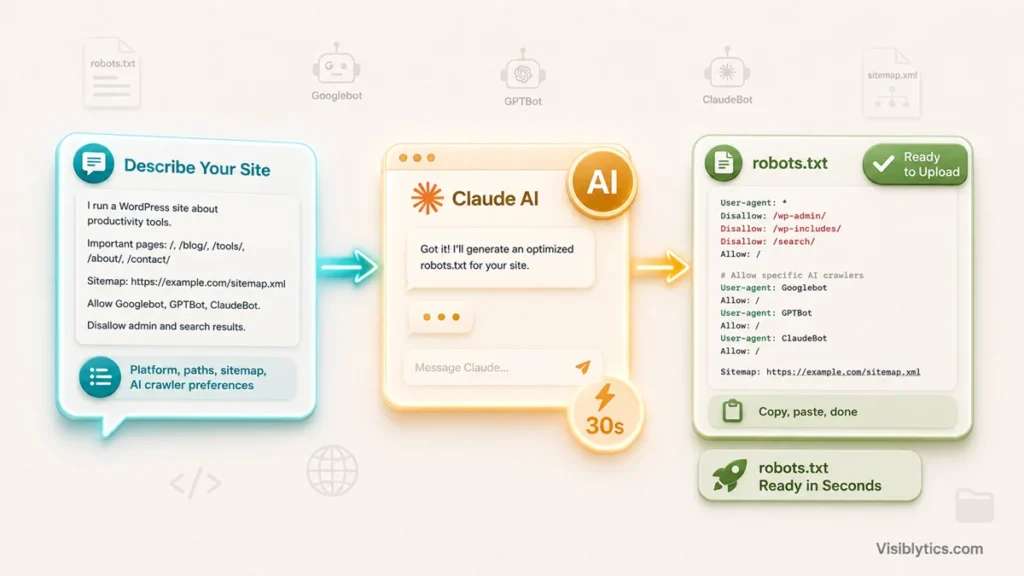
If you want to create a robots.txt file with Claude, open a chat, tell Claude your platform, the folders you want to block, and your sitemap URL, and ask it to write the file in the standard Robots Exclusion Protocol format. Claude will return a ready to use robots.txt file in one response, usually inside 30 seconds, that you can copy straight into your site’s root directory. No plugin, no generator interface, no syntax to memorise.
I have set up robots.txt files for client sites for years, mostly by hand or through a generator tool. Lately I have started handing the first draft to Claude instead, then reviewing it before it goes live. It is faster than typing out directive blocks myself, and it gets the syntax right almost every time. This post walks through exactly how I do it, what to include in the prompt, and where I still think a dedicated generator has the edge.
What a Robots.txt File Actually Does
A robots.txt file is a plain text file placed at yourdomain.com/robots.txt that tells search engine crawlers and other bots which parts of your site they are allowed to request. It is the first thing most crawlers check before they touch anything else on your domain, so getting it right affects how efficiently your site gets crawled and indexed.
The file itself is short. It is made up of user agent blocks, each one naming a crawler and listing paths it should avoid or is explicitly permitted to visit. A sitemap line at the bottom points crawlers to your XML sitemap so they can find your pages faster. That is the whole format, and it is exactly what Claude is good at producing on the first try, because it is a small, rule based text output rather than a creative writing task.
One thing worth remembering before you generate anything: robots.txt is a request, not an enforcement mechanism. Well behaved crawlers like Googlebot, Bingbot, and most AI crawlers respect it. Bad actors can ignore it entirely. So treat it as a way to guide legitimate bots, not as a security control for sensitive data.
Why Use Claude to Create a Robots.txt File Instead of Writing It Yourself
Claude is useful here for one simple reason. It already knows the syntax rules of the Robots Exclusion Protocol, the correct user agent strings for major crawlers, and the common mistakes people make, like blocking CSS and JS files by accident. When you ask Claude to create a robots.txt file, you are not teaching it the format, you are just telling it your specific situation, and it fills in the rest.
This matters more than it sounds like. Most people who need a robots.txt file are not looking to learn the specification. They have a WordPress site, a Shopify store, or a custom build, and they want three or four folders blocked, a sitemap referenced, and to be done with it. Typing that out from memory means recalling exact syntax, checking for typos in Disallow lines, and remembering which bots need separate rules. Claude removes that friction because you describe the outcome in plain English and it writes the file.
The other advantage is that you can ask follow up questions in the same chat. If you are not sure whether to block GPTBot or ClaudeBot, you can ask Claude directly, and it will explain the tradeoff before you commit to a rule. A static generator form does not give you that back and forth.
How to Create a Robots.txt File With Claude in 30 Seconds
Here is the actual process, step by step.
Step 1: Open Claude and describe your site. Mention your CMS or platform if you have one, for example WordPress, Shopify, or a custom site, since this changes which default folders need blocking.
Step 2: List what you want blocked. Admin folders, search result pages, staging environments, duplicate URL parameters, anything you do not want crawled. If you are not sure what to block, ask Claude to suggest common paths for your platform first.
Step 3: Give Claude your sitemap URL. This gets added as a Sitemap directive so crawlers can find your pages without needing to discover them through internal links alone.
Step 4: Tell Claude how you want to handle AI crawlers. Decide if you want to allow, block, or stay neutral on bots like GPTBot, ClaudeBot, and Google-Extended, and say so in the prompt.
Step 5: Ask Claude to output the file in a code block. This keeps the formatting clean so you can copy it directly without extra characters sneaking in.
That is genuinely the whole process. Once Claude has your platform, your blocked paths, your sitemap, and your AI crawler preference, generating the file itself takes seconds. The time you actually spend is on steps one through four, deciding what you want, not on writing syntax.
The Exact Prompt to Use With Claude
Here is a prompt template I use myself when I need to create a robots.txt file with Claude for a client site:
Create a robots.txt file for my website. Details:
- Platform: WordPress
- Block these paths: /wp-admin/, /wp-includes/, /search?, /?s=
- Allow: /wp-admin/admin-ajax.php
- Sitemap URL: https://example.com/sitemap.xml
- AI crawlers: block GPTBot, ClaudeBot, and Google-Extended for training,
  but allow Claude-User and OAI-SearchBot so their search features can
  still cite my pages
- Output the final file in a code block, ready to copy
Swap in your own platform, paths, and sitemap, and Claude will return a properly formatted file within seconds. If you leave out a detail, like your platform, Claude will usually ask a quick clarifying question rather than guessing, which is worth taking advantage of rather than skipping.
What a Finished Robots.txt File Looks Like
When you create a robots.txt file with Claude using the prompt above, the output looks roughly like this:
User-agent: *
Disallow: /wp-admin/
Disallow: /wp-includes/
Disallow: /search?
Disallow: /?s=
Allow: /wp-admin/admin-ajax.php

User-agent: GPTBot
Disallow: /

User-agent: ClaudeBot
Disallow: /

User-agent: Google-Extended
Disallow: /

User-agent: Claude-User
Allow: /

User-agent: OAI-SearchBot
Allow: /

Sitemap: https://example.com/sitemap.xml
Notice the structure. Every user agent gets its own block, blank lines separate the groups, and the sitemap sits at the bottom. This is standard formatting that most crawlers expect, and it is exactly the kind of repetitive, rule bound output that Claude produces reliably without you having to check each line for a missing colon or a stray space.
Handling AI Crawlers When You Generate a Robots.txt File
This is where a lot of people get stuck, and it is worth spending an extra minute on when you create a robots.txt file with Claude, because AI crawlers are not all the same thing and blocking one does not block the rest.
Training crawlers like GPTBot, ClaudeBot, and Google-Extended scrape content specifically to train future models. Blocking these stops your content from ending up in a training dataset going forward, but it has no effect on how the assistant behaves when a user asks it a question in real time.
Search and retrieval crawlers, like OAI-SearchBot or Claude-User, work differently. These fetch pages on demand when someone asks ChatGPT or Claude a question that needs current information from your site. If you block these, your content stops showing up as a citation or answer source in that assistant, even though it was never used for training in the first place.
So the real decision is not “allow AI or block AI.” It is: do you want your content used for model training, and separately, do you want your content surfaced when someone asks an AI assistant a question. You can say yes to one and no to the other, and a good prompt to Claude should reflect that distinction rather than treating all AI bots as one category.
Common Mistakes to Avoid
A few things go wrong often enough that they are worth flagging before you generate anything.
Blocking your CSS and JavaScript files by accident is the most common one. If Googlebot cannot load your stylesheets and scripts, it cannot render your page properly, and that can hurt how your pages are understood and ranked. Never disallow folders like /assets/ or /wp-content/themes/ wholesale unless you are certain nothing there is needed for rendering.
Forgetting the sitemap line is another. It costs one line and speeds up discovery of new and updated pages, so there is no real reason to leave it out.
Assuming robots.txt blocks indexing is a mistake I still see on client sites. Robots.txt controls crawling, not indexing. A blocked URL can still appear in search results if other sites link to it, just without a description, because Google never crawled the content to write one. If you actually want a page out of search results, you need a noindex meta tag on the page itself, which requires the page to be crawlable so the bot can see that tag.
Applying Crawl-delay and expecting Google to respect it will not work either. Googlebot ignores Crawl-delay entirely, though Bingbot and a few others still honor it, so it is not a wasted directive, just not a universal one.
Testing and Uploading Your Robots.txt File
Once Claude gives you the file, paste it into a plain text file named robots.txt and upload it to your site’s root directory, so it lives at yourdomain.com/robots.txt and nowhere else. It will not work from a subfolder.
Before you upload, it is worth running the file through a dedicated checker rather than trusting the output blindly, since even a well formatted file can have a rule that behaves differently than you expect. I usually paste Claude’s output into the free robots.txt tester on Visiblytics, which has a live preview and a path tester, so I can confirm that a specific URL is actually blocked or allowed the way I intended before it goes live on the domain.
If your sitemap is not built yet, generate one first so you have a real URL to reference in the Sitemap directive instead of a placeholder. A free XML sitemap generator can produce that file in a few minutes if you do not already have one from your CMS.
Claude vs a Dedicated Robots.txt Generator Tool
Both approaches get you to a working file, but they solve slightly different problems, and I use both depending on the situation.
Claude is better when your setup is not standard. If you have an unusual folder structure, a mix of subdomains with different rules, or you want to talk through the tradeoffs of blocking a specific AI crawler before deciding, a conversation gets you a more considered answer than a form with checkboxes.
A generator tool is better when you want a visual, error checked interface with a live preview and a built in path tester, so you can click through options and see the exact output update in real time, then verify a URL is handled correctly before you download anything. For AI crawler rules specifically, a generator with a maintained list of current bot names also saves you from typing user agent strings that might be slightly out of date.
In practice, my workflow is Claude first for the thinking and the first draft, then a generator tool second to double check the syntax and test specific paths before the file goes live. If you are working on your broader AI visibility strategy beyond just this one file, it is also worth reading up on AI visibility guide to understand how crawler access ties into whether your content gets cited by AI assistants at all.
❓ Frequently Asked Questions
Can Claude actually create a working robots.txt file?
Yes. Claude can produce a correctly formatted robots.txt file using standard Robots Exclusion Protocol syntax, including user agent blocks, Disallow and Allow paths, and a sitemap directive. You still need to upload it to your site’s root directory yourself, since Claude cannot do that part for you.
Is it safe to use an AI generated robots.txt file without checking it?
It is safe to generate it that way, but I would not skip a quick check before uploading. A misplaced Disallow rule can accidentally block important pages or your CSS and JS files, so run the output through a checker or read through it line by line before it goes live.
Does blocking ClaudeBot stop Claude from visiting my site at all?
No. ClaudeBot is the crawler that collects training data. Blocking it does not affect Claude-User, which is the separate system Claude uses to fetch a page in real time when someone asks it a question that needs current information from your site.
How often should I update my robots.txt file?
Review it whenever you change site structure, add a new subdomain, or launch a staging environment. AI crawler user agents also change from time to time as companies add new bots, so a quarterly check is a reasonable habit even if nothing else on the site has changed.
What is the fastest way to create a robots.txt file with Claude?
Give Claude your platform, the paths you want blocked, your sitemap URL, and your preference on AI crawlers in a single message, and ask for the output in a code block. That single prompt is usually enough to get a complete, ready to upload file back in one response.