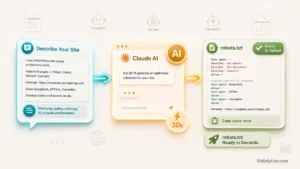

If you want to use Claude AI to generate schema markup, the fastest reliable method is this: paste your actual page content into Claude, tell it the exact schema.org type you need, ask for JSON-LD only, and then run the output through Google’s Rich Results Test before you publish. Claude AI is good at writing the JSON syntax correctly. It is not good at knowing what your page actually says unless you show it, so the content you feed it matters more than the prompt you write.
I have used Claude AI to generate schema markup for client sites across a few industries now, mostly blogs, product pages, and local business sites. The tool part is easy. The part people get wrong is treating it like a form generator instead of showing it real content and checking what comes back. This guide walks through the exact process, the prompts that work, and the mistakes I see most often when people skip the review step.
What Schema Markup Actually Does and Why Claude AI Is a Reasonable Tool for It
Schema markup is code, usually written in JSON-LD, that tells search engines what your content is about in a structured way instead of leaving them to guess from the visible text. It sits inside a script tag on your page and describes things like whether a page is a recipe, a product, an article, or a local business, along with the specific details search engines can pull into rich results.
Claude AI works reasonably well for this because generating JSON-LD is mostly a formatting task once the right fields are known. The model does not need to be creative here. It needs to take structured input (your title, author, date, price, FAQ pairs, whatever the schema type requires) and output it in the correct nested JSON format with the right property names. That is squarely the kind of task large language models handle well, as long as you are not asking it to invent details it was not given.
Where people run into trouble is assuming Claude AI knows schema.org’s current requirements by memory and will never get a property name wrong or leave out something Google now expects. It usually gets the structure right, but schema.org’s vocabulary and Google’s specific requirements for rich results do shift over time, so a validation step is not optional. I’ll cover that later in this guide.
Beyond rich results, schema markup also feeds into how search engines connect your brand to a broader entity, which matters more now that AI-generated answers pull from structured data as much as from ranking pages. If that side of things (entity recognition, knowledge graph presence) is part of what you’re trying to build, it’s worth reading about separately, since it goes further than what a single page’s markup can do on its own. Visiblytics has a breakdown of that under its AI Visibility Guide if you want the fuller picture.
What You Need Before You Open Claude
Before you start generating schema markup with Claude AI, gather these four things. Skipping this step is the single biggest reason people end up with schema that looks fine but fails validation or does not match the page.
- The actual page content, not a summary you write from memory. Copy the real headline, author name, publish date, price, availability, FAQ text, or whatever the page contains.
- The schema type you need. Article, Product, FAQPage, HowTo, LocalBusiness, Organization, Review, or BreadcrumbList are the common ones. If you are not sure which type fits, check Google’s Search Central documentation for the list of content types eligible for rich results.
- Any existing schema on the page, if you are updating rather than adding new markup. Paste it in so Claude can extend it instead of duplicating it.
- A validator open in another tab. You will need this after Claude generates the code, not before.
How to Use Claude AI to Generate Schema Markup, Step by Step
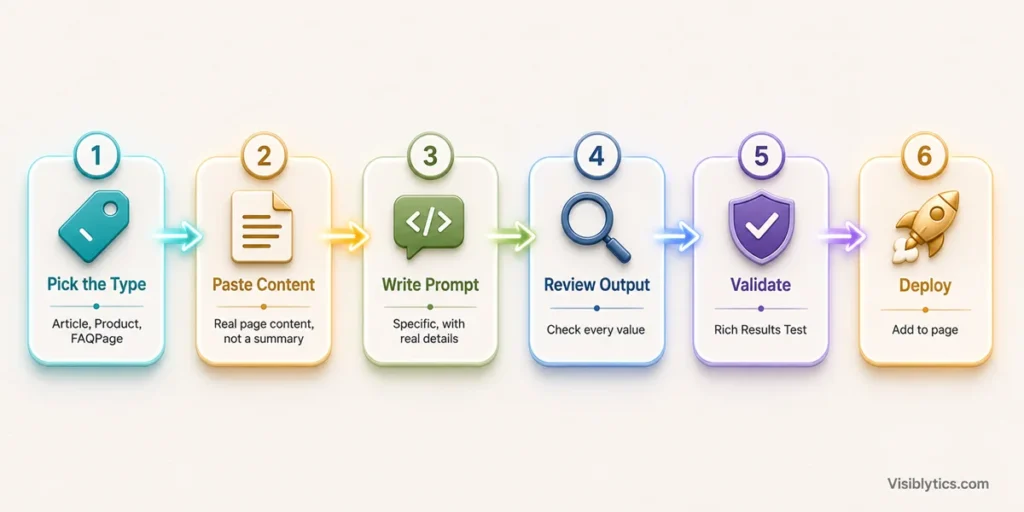
Step 1: Pick the schema type before you prompt anything
Decide what the page actually is before you ask Claude for anything. A blog post is usually Article or BlogPosting. A product page is Product. A page with a genuine list of questions and answers is FAQPage. A recipe is Recipe. Do not pick a type because it sounds like it might get you a better search result. Google has been explicit that markup has to reflect the real content of the page, and mismatched schema is one of the more common reasons rich results get pulled or ignored.
Step 2: Paste in your real content, not a description of it
This is the step most people skip, and it is the reason a lot of AI-generated schema markup ends up inaccurate. Do not tell Claude “write Article schema for a blog post about email marketing.” Instead, paste the actual headline, the actual author byline, the actual publish date, and a short excerpt. If it is a Product page, give it the real price, currency, availability status, and SKU. Claude AI can only be as accurate as what you give it, and it will fill gaps with plausible-sounding placeholders if you leave them open, which is exactly what you do not want in code that search engines read literally.
Step 3: Write a specific prompt
A vague prompt gets you a generic schema block. Be specific about the type, the format, and what you want left out. Here is a prompt structure that has worked consistently for me:
Generate JSON-LD schema markup for a [schema type] page. Use only the information I provide below, do not invent or assume any values. Include the required properties for this type according to Google's rich results guidelines, plus any recommended properties that apply. Output only the JSON-LD code in a script tag, no explanation before or after. Here is the content: [paste content]That instruction to avoid inventing values matters. Without it, Claude AI will sometimes generate a plausible-looking datePublished or aggregateRating if you did not explicitly provide one, because the model is trying to be helpful and complete. That is exactly the kind of thing that gets flagged in Search Console later.
Step 4: Read the output before you touch it
Once Claude AI generates the schema markup, read through every property it filled in. Check that the values match your actual page, not something that looks reasonable but was inferred. Pay close attention to dates, prices, and ratings, since those are the fields most likely to be treated as spam signals if they do not match what a user sees on the page.
Step 5: Validate the JSON-LD before publishing
Run the code through Google’s Rich Results Test and the Schema Markup Validator at validator.schema.org. These two tools catch different things, the first checks Google-specific rich result eligibility, and the second checks general schema.org compliance. If you want a quick way to check the JSON syntax itself before you even get to validation, a plain JSON Formatter is useful for catching a missing comma or bracket that would otherwise break the whole script tag.
Step 6: Add it to the page correctly
Google recommends placing JSON-LD in the page head, though it also works before the closing body tag if your CMS makes that easier. One thing worth knowing if your site relies on client-side JavaScript to inject schema: recent guidance from Google has flagged that structured data added dynamically through JavaScript can face delayed processing, and for anything time-sensitive like product pricing, it is safer to have the JSON-LD rendered in the initial server-side HTML rather than injected afterward. If you are on WordPress, most SEO plugins let you paste custom JSON-LD directly, which avoids this issue entirely.
Prompts to Generate Schema Markup with Claude AI for Common Page Types
These are the prompt templates I actually use. Swap in the schema type and your real content each time.
Article or BlogPosting schema:
Generate Article schema in JSON-LD for this blog post. Required fields are headline, image, datePublished, dateModified, and author. Use only the details I give you, do not add an aggregateRating or any field I have not provided. Content: [paste]FAQPage schema:
Convert these questions and answers into FAQPage schema in JSON-LD. Keep the wording of the answers exactly as written, do not rephrase or shorten them. Questions and answers: [paste]Product schema:
Generate Product schema in JSON-LD including name, image, description, brand, offers (price, priceCurrency, availability), and any review data I provide below. Do not invent a rating if I have not included one. Product details: [paste]LocalBusiness schema:
Generate LocalBusiness schema in JSON-LD for this business, including name, address, telephone, openingHours, and geo coordinates if provided. Business details: [paste]HowTo schema:
Convert these steps into HowTo schema in JSON-LD, keeping each step as a separate HowToStep object with name and text. Steps: [paste]Asking Claude to hold the wording steady rather than rewrite it matters for FAQ and HowTo schema specifically, since the markup is supposed to represent what is visibly on the page, not a paraphrased version of it.
Common Mistakes When Using Claude AI to Generate Schema Markup
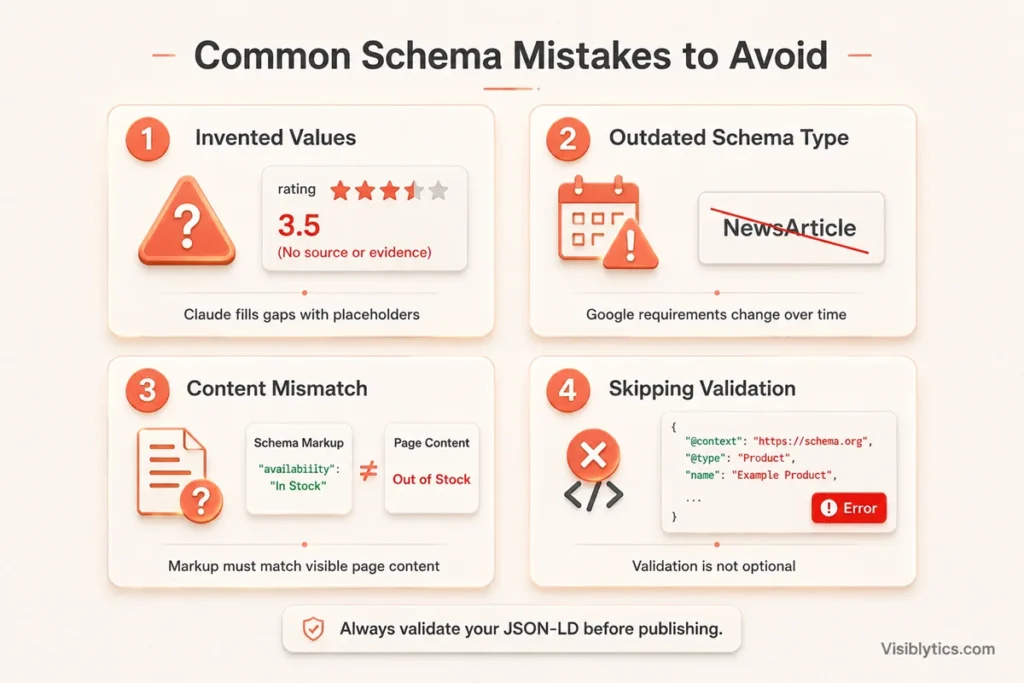
Letting it fill in missing fields on its own. If you do not provide a rating, a price, or a date, Claude AI may generate something plausible rather than flag it as missing. Always check for values you did not explicitly supply.
Using an outdated schema type. Some schema.org types Google supported for rich results in the past have since been deprecated for that purpose, even if they are technically valid schema.org vocabulary. Always cross-check the type against Google’s current documentation rather than relying on the model’s training data alone, since that data has a cutoff and schema requirements change.
Copying markup without matching it to visible content. If your JSON-LD says a product is in stock and the page says otherwise, or your FAQ schema includes questions that are not actually shown to users, that is a mismatch Google’s guidelines explicitly warn against.
Stacking multiple schema types incorrectly. If a page needs more than one schema type, for example Article plus BreadcrumbList, the correct approach is usually to combine them using the @graph pattern rather than pasting two separate script tags. Ask Claude directly for this if your page needs it.
Skipping validation because the code “looks right.” JSON-LD that is syntactically valid can still be missing a required property or using a value type Google does not accept. Validation is the step that catches this, not a visual read-through.
Claude AI vs. Manual Coding vs. Schema Plugins
Manual coding gives you full control but is slow if you are doing this across dozens of pages, and typos in JSON are easy to miss without a formatter checking your work. Schema plugins are fast and template-based, which is great for consistency across a site, but they often struggle with anything custom, like nested FAQ content or a Product page with unusual attributes. Claude AI sits in between. It is faster than writing JSON by hand, more flexible than a plugin’s fixed templates, and works well for one-off or custom pages, but it still needs a human checking the output against the real page content and a validator confirming the syntax and required fields. None of the three replaces the validation step.
If you want a faster way to produce a first draft without opening a chat window each time, a browser-based schema markup generator can work as a quicker starting point for standard types before you hand anything off for review.
How to Validate the Schema Markup Claude AI Generates
Two checks cover most of what you need. First, run the code through Google’s Rich Results Test to see whether it is eligible for the rich result types you are targeting, and to catch any missing required properties. Second, run it through the Schema Markup Validator at validator.schema.org to confirm it is valid against the broader schema.org vocabulary, not just Google’s subset. After the page is live, keep an eye on the Enhancements section of Google Search Console, since that is where errors on already-published schema tend to surface, sometimes weeks after you publish. If your site is JavaScript-heavy, it is also worth checking that the rendered HTML (not just the source) actually contains the script tag, since some frameworks strip or delay it during rendering.
❓ Frequently Asked Questions
Can Claude AI generate schema markup for any page type?
It can generate JSON-LD for most common schema.org types, including Article, Product, FAQPage, HowTo, LocalBusiness, Organization, Review, and BreadcrumbList, as long as you supply the real content it needs to fill in. It struggles the same way any tool would if you ask for a niche or rarely-used type without giving it a clear example to follow.
Does Claude AI know Google’s current rich result requirements?
It has a general understanding from its training data, but that data has a cutoff date, and Google updates its rich result requirements periodically. I would not treat Claude’s output as automatically current. Always confirm against Google’s Search Central documentation and a validator before publishing.
Is JSON-LD from Claude AI safe to use without checking it?
No. Treat it as a draft. Review every value against your actual page content, then validate it. This is true of AI-generated code in general, not something specific to schema markup.
Where should I place the schema markup Claude AI generates?
In the page head is Google’s general recommendation, though placement just before the closing body tag also works. If your schema is injected via JavaScript rather than present in the server-rendered HTML, be aware that Google has noted this can delay processing, particularly for time-sensitive data like pricing.
Can I use Claude AI to fix existing schema markup instead of writing new markup?
Yes, and this is one of the more useful applications. Paste your existing JSON-LD along with the current page content and ask Claude to identify mismatches or missing required fields rather than generate anything from scratch. It is often faster at spotting an inconsistency than a manual read-through.