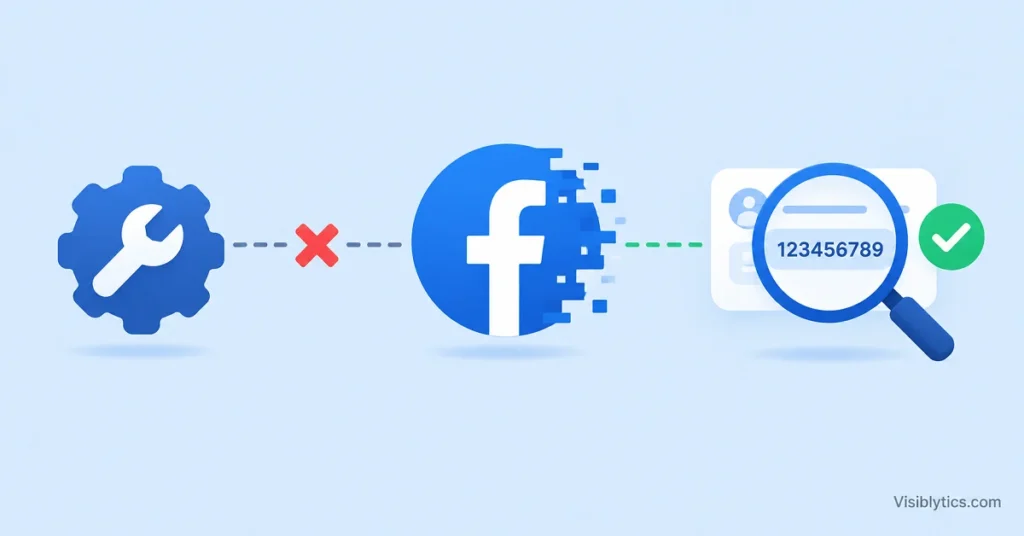
You paste a number into a plugin, an automation tool, or an ad platform, and it answers with an error. A Facebook Page ID not working is one of the most common integration problems I run into, and it rarely means the tool is broken. In most cases the number is the wrong kind of ID, the wrong format, or the right ID tied to an account that lacks permission. This guide walks through each cause in the order I check them, then shows how to find the correct ID and confirm it before you try again.
Why Is My Facebook Page ID Not Working in a Third-Party Tool?
A Facebook Page ID usually fails for one of four reasons. The number belongs to something other than a Page, the tool expected a numeric ID and received a username, the connected account has no admin access to that Page, or the value picked up stray characters when it was copied. Each of these produces the same vague error, which is why the problem feels random.
The tool itself is rarely the cause. Plugins, automation platforms and reporting dashboards all send the ID to Facebook and report whatever comes back. If Facebook cannot match the number to a Page the connected account can access, the tool shows “invalid ID”, “page not found” or an empty dropdown.
That is useful to know, because it changes where you look. Retrying the same number in the same tool will not help. The better approach is to confirm what kind of ID you have, confirm it points to the right Page, and then confirm the account you connected is allowed to use it.
What Is a Facebook Page ID and What Does It Look Like?
A Facebook Page ID is the unique numeric identifier Facebook assigns to a Page. It is a long string of digits with no letters, and it stays the same even if you rename the Page or change its web address.
That last point matters. The name in your Page URL, such as facebook.com/yourbrand, is a username. It can change. The numeric ID cannot. Tools that talk to Facebook behind the scenes need the permanent number, because a name can be edited and a number cannot.
You will see the numeric ID in a few places. Some Page URLs end with a number, and the older structure placed the number after the Page name in a path. Newer Pages show it inside the About section. The exact menu labels change as Facebook updates its interface, so treat the paths below as a guide rather than a fixed route.
Which IDs Get Mistaken for a Facebook Page ID?
The most common mistake is using a personal profile ID where a Page ID is required. Others include group IDs, Instagram account IDs, ad account IDs, business portfolio IDs, app IDs and post IDs. All of them are long numbers, and none of them work in a field that asks for a Page ID.
Here is how I separate them when a field rejects a number:
- Profile ID: belongs to a personal account. Many tools that ask for a Page ID cannot work with profiles at all, and I have seen support threads where the answer was simply that the tool does not support posting to profiles.
- Group ID: appears in the web address after the groups part of the path. It identifies a group, not a Page.
- Instagram account ID: belongs to an Instagram professional account that may be linked to the Page. It is a different number.
- Ad account ID: used inside Ads Manager and often shown with a prefix. It identifies billing and campaigns.
- App ID: belongs to a Meta developer app you or a developer created for the integration.
- Post ID: identifies a single piece of content, sometimes shown as two numbers joined together, where the first part is the Page.
If the number you pasted came from a URL, an ads screen or a developer dashboard rather than the Page’s own About section, there is a good chance it is one of these. Start over from the Page itself.
How Do I Find My Facebook Page ID From the Page Itself?
Open your Page, go to About, and look for Page Transparency. The Page ID is listed there as a plain number. If you do not see About in the left column, look under a More or See more option, because the layout depends on the version of the Page you are using.
A second route is the address bar. A Page URL that includes a number at the end of the name, such as a brand name followed by a hyphen and digits, usually carries the ID in those digits. An older style of address puts the Page name in a path and the number after it, and in that case the number at the end is the ID.
There is also a catch. A clean address with only a name, such as facebook.com/yourbrand, shows no number at all. In that situation the About section is the reliable place to look, since the address bar only gives you the username.
Write the ID into a plain text note before using it. Copying straight from a page sometimes includes a trailing space or a hidden character, and that single extra character is enough to make a tool reject an otherwise correct value.
How Can I Find a Facebook Page ID With a Page ID Finder?
A Facebook Page ID finder reads a public Page address and returns the numeric ID, which is useful when you do not have admin access or when the Page does not show the number clearly. You enter the Page URL or username, and the finder returns the ID that matches it.
This is the route I use when I am working on a Page that belongs to a client and the About section is limited. A tool like the Facebook Page ID finder removes the guesswork about which number in the page source is the right one, and it works from a public address, so no login is needed. It only works for public Pages, and a Page that is unpublished or restricted may not return a result.
Other finders exist, and some people prefer to read the number from the page source with the browser’s inspect function. That method works, but it is easy to grab the wrong number, because the source contains many IDs. If you take that route, check the result before using it, using the steps in the next section.
How Do I Check That a Facebook Page ID Is Correct Before Using It?
Type facebook.com/ followed by the ID into a browser. If it opens the Page you expected, the number is a valid Page ID for that Page. If it opens a different page, an error, or a profile, the ID is wrong.
This takes ten seconds and removes most of the guessing. I do it every time, even when the ID came from a source I trust, because a number copied from an old document may point to a Page that was merged, renamed or replaced.
A few things to watch for during the check:
- The browser should land on the same Page name and profile picture you were aiming for.
- If you are logged in as a personal account and the Page loads, that confirms the ID is public. It does not confirm your tool’s account can manage the Page.
- If the address redirects to a name-based URL, that is normal. The ID is still valid.
Once the ID passes this test, any remaining problem sits with the tool, the connection or the permissions, and those are covered in the next sections.
Why Does the Tool Still Reject a Correct Facebook Page ID?
When the ID is correct and the tool still rejects it, the cause is nearly always permissions. The Facebook account connected to the tool must have a role on the Page that allows the action the tool is trying to perform, and the connection must have been granted access to that specific Page.
There are several versions of this problem:
The connected account is not an admin. Many tools need the account to hold an admin role, or a task-based permission such as managing content or leads. A person who only has a limited role can see the Page but cannot connect it.
The connection was approved for different Pages. When you log in through an app, Facebook asks which Pages to share. If the Page you need was left unchecked, it will not appear in the tool, and typing the ID by hand will not override that. In one automation thread I read, the user had verified admin status and reset connections and the Pages still did not load, which pointed to a lead access setting rather than the ID.
The Page sits inside a business portfolio. A Page managed through a business account may require access to be granted to the person or the app from the business settings, not only from the Page.
The connection is stale. Removing the app from your Facebook settings and reconnecting is a standard fix. I have seen a tutorial for one automation tool that recommends exactly this, followed by switching the Page field to manual mode and pasting the ID.
Reconnecting forces Facebook to ask again which Pages to share, and that second prompt is where most missing Pages come back.
What Formatting Mistakes Make a Facebook Page ID Fail?
The common formatting mistakes are leading or trailing spaces, a full URL pasted into an ID field, a username used in place of a number, and long numbers altered by a spreadsheet. Any of these can cause a rejection even when the underlying ID is right.
I check for them in this order:
- Spaces. A copied value can carry a space or a line break at either end. Paste it into a plain text editor and retype the edges.
- Full URL instead of ID. Some fields want only the digits. If the field says ID, give it the number and nothing else.
- Username instead of number. A name like yourbrand looks like an ID to people but is not one. Some tools accept it and others do not, so use the number when in doubt.
- Spreadsheet changes. Spreadsheets can show a long number in scientific notation or drop digits past a certain length. If the ID passed through a sheet on the way to the tool, set the column to text and paste it again from the original source.
- A prefix or extra characters. Some page addresses combine a name and a number with a hyphen. Only the digits at the end are the ID.
One of the support threads I looked at involved a plugin that only worked when the ID had a numeric form, while the plain name version of the same Page failed. That is the username problem in practice.
How Do I Fix a Facebook Page ID Not Working Step by Step?
Work through the problem in a fixed order: confirm the ID type, confirm the number, confirm the account, then reconnect. Skipping ahead is how people lose an hour on a problem that takes five minutes in the right sequence.
- Confirm it is a Page. Check that the thing you are connecting is a Page and not a personal profile or a group.
- Get the ID from the About section. Use Page Transparency, or a Page ID finder if you lack admin access.
- Test the number in a browser. Enter facebook.com/ and the ID. The right Page should open.
- Clean the value. Paste it into plain text, remove spaces, and keep only digits.
- Check the role. Confirm the Facebook account you connected holds an admin role or the task permission the tool needs.
- Reconnect the app. Remove the app’s access in Facebook settings, connect again, and select the Page when asked.
- Enter the ID manually if the dropdown stays empty. Many tools offer a manual field for this case.
- Try a different tool route. If one connection method fails, a second route, such as a different permission scope, sometimes works.
If you reach step eight and the Page still fails, the cause is more likely a restriction on the Page itself, a pending ownership claim, or an unpublished Page. At that stage the Page settings are worth more attention than the ID.
Why Do Facebook Page ID Errors Appear in Lead Forms, Plugins and Automation Tools?
These tools fail in slightly different ways, but the root causes repeat. Lead form connectors depend on lead access permissions, WordPress plugins often accept only public Pages, and automation platforms rely on which Pages the connection was approved for.
Lead form connectors. A connector can fail to list a Page even when you are an admin, because access to leads is a separate permission. The Page owner may need to grant it. I have seen this arise after interface changes, when pages that used to load by ID stopped appearing.
WordPress plugins and widgets. Plugins that display feeds or photos usually accept public Pages only. A personal profile will not work, and a username that works for one Page may fail for another because of how the address is structured. The numeric ID is the safer input.
Automation and workflow platforms. These depend on the pages shared during login. If the dropdown is empty, reconnect and select the Pages again. If the list is incomplete, enter the ID in manual mode.
In each case the ID is one piece of a three-part check: the right kind of identifier, the right Page, and the right access.
What Should I Do When a Facebook Page ID Is Correct but the Page Is Restricted?
A correct ID can still fail if the Page is unpublished, age or country restricted, or under review. Facebook may not return data for Pages in these states, so the tool reports the same error as for a wrong ID.
Check the Page while logged out or in a private browser window. If it does not load for a visitor, the Page is not fully public, and a public lookup will not return it either. Publish the Page, remove the restriction, or ask the Page owner to do so, then retry.
A Page that was recently merged or moved can also hold an older ID in saved settings. If a tool worked before and stopped, compare the stored ID with the current one from About. A mismatch is a simple explanation for a connection that used to work.
How Can I Avoid a Facebook Page ID Not Working Again?
Keep a record of the correct numeric ID, the Page name it belongs to, and the account that holds admin access. Having these three items in one place prevents most repeat problems, especially on teams where several people connect tools to the same Page.
A few habits make a difference:
- Store the ID as text, not in a numeric spreadsheet cell.
- Note which Facebook account connected each tool, so access can be reviewed when a staff member leaves.
- Re-test the ID with facebook.com/ and the number whenever a tool is migrated or reconnected.
- Use the numeric ID in preference to the username when a field allows either.
- When a Page is renamed, remember that the ID stays the same, so a failure after a rename points to something other than the ID.
If you manage Pages for several clients, a short reference sheet saves time. When a new tool asks for an ID, you can copy it from your own record and confirm it with a quick lookup, using a Facebook Page ID finder when the About section does not show it.
The pattern behind almost every case I have handled is the same. The number was a real ID, but not a Page ID, or it was a Page ID that the connected account could not use. Once you separate those two questions, the error stops being mysterious and becomes a short checklist.