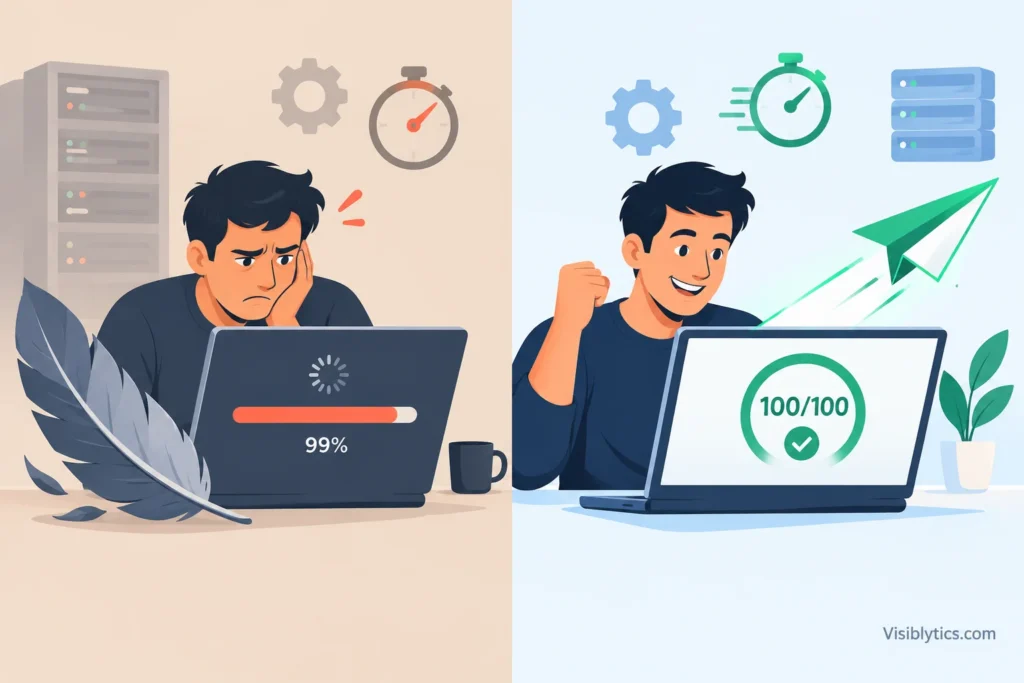
If your website is still slow after compressing images, the cause is almost always something compression does not touch. Compression reduces file size. It does not fix oversized dimensions, the wrong format, a slow server, missing caching, or heavy scripts.
I have looked at a lot of sites where someone did the “right” thing, compressed every image, and saw almost no change in load time. It is frustrating, but it is also a good sign. It means you have cleared one problem and can now find the real one. This guide walks through where to look, in the order I would check.
Why Does My Website Still Load Slowly After Compressing Images?
Your website still loads slowly because page speed depends on much more than image weight. Server response time, caching, render-blocking code, third-party scripts, fonts and image delivery all add to the total.
Think of a page load as a chain. Images are one link. If you strengthen that link but another one is slow, the whole chain still takes the same time. A 300 KB image that is lazy loaded by mistake, served from a slow server, or blocked behind a heavy script will still feel slow.
There is also a measurement problem. Many people judge speed by a single score and assume compression should have moved it. Scores depend on which metric is failing. If your Largest Contentful Paint is slow because the server takes two seconds to respond, no amount of image compression will fix it.
How to Check Whether Images Are Still Your Problem
Run your page through PageSpeed Insights or WebPageTest and look at which specific metric is failing, then look at the waterfall. This takes five minutes and stops you from guessing.
Here is what I look at, in this order:
- Total page weight. If images are still more than half of it, they are still part of the problem.
- The LCP element. Find out what Google considers your largest element. On many pages it is a hero image.
- Server response time (TTFB). If the first byte takes a long time to arrive, the problem is upstream of your images.
- The waterfall. Look for long gaps, blocked requests, and third-party domains that load late.
Google’s guideline is that a good LCP is 2.5 seconds or less at the 75th percentile of visits. Keep that number in mind when you test. Also test on mobile settings, because that is where image and script problems show up most.
Image-Related Reasons Your Site Is Still Slow
1. The Images Are Compressed but Still Too Large in Dimensions
Compression lowers file size, but it does not change pixel dimensions. A 4000 pixel wide photo displayed at 600 pixels is still wasteful, even when it has been compressed hard. The browser downloads the full image and then scales it down.
Resize first, then compress. If your layout shows an image at 800 pixels wide, a version around 1600 pixels wide is usually enough to stay sharp on high-density screens. You can do this with the image resizer and then run the results through the image compressor. This order matters. Compressing a huge image and then resizing it wastes quality, while resizing first gives compression less to do.
Social and Open Graph images are a common hidden offender. People upload one giant banner and use it everywhere. Sizing these properly for each platform with the social media image resizer keeps them from bloating pages that also use them as featured images.
2. You Are Still Serving PNG or JPG When a Modern Format Would Be Smaller
Modern formats like WebP are often a quarter to a third smaller than JPG at similar visual quality. If you compress a PNG or JPG and stop there, you may be leaving a large saving on the table.
PNG files are the usual problem. A photo saved as PNG can be several times heavier than the same photo as WebP. Converting with a PNG to WebP converter or a JPG to WebP converter is often the single biggest image-side gain after resizing. Keep PNG only where you truly need it, such as some graphics with sharp edges where you have tested that WebP looks worse.
3. The Site Is Not Serving Responsive Image Sizes
If every visitor gets the same large image, phones download far more than they need. A compressed desktop image is still heavy on a mobile connection.
Responsive images use srcset and sizes so the browser picks the best file for the screen. WordPress does this for many images by default, but themes and page builders often override it. Check the page source. If you see one src and no srcset on your main images, this is worth fixing.
On WordPress there is a related trap. Each upload creates several thumbnail sizes. Some compression plugins optimize only the originals, or the thumbnails get regenerated later and lose their optimization. I have seen sites where the media library looked clean, but the front end was serving uncompressed thumbnails. Always check what the page actually loads, not what the library shows.
4. Your Main Image Is Being Lazy Loaded
Lazy loading is good for images below the fold, but it is harmful for your hero image. If the largest visible image waits to load, your LCP gets worse, even though the file is small.
The fix is simple. Do not lazy load the first large image on the page. Load it normally, and consider giving it a high fetch priority. Lazy load everything further down. Many speed plugins apply lazy loading to every image by default, so this mistake is more common than it should be.
5. Visitors Are Still Getting the Old, Heavy Files
Sometimes you compressed the images, but the site is still serving the old versions. The cause is usually caching. A browser cache, a server cache, a caching plugin or a CDN may hold the original files.
After replacing images, clear every cache layer. Then open the page in a private window and check the actual file size in the network panel. If the size has not changed, you are still looking at the old file, or the page points to a different URL than the one you replaced. A re-uploaded image with the same file name is a classic case.
Non-Image Reasons Your Site Is Still Slow
6. Your Server Response Time Is Slow
If the server takes too long to respond, every other optimization is held back. Slow hosting, an overloaded shared plan or an uncached dynamic page can add a second or more before anything starts loading.
Check TTFB in your test results. If it is consistently high, images are not the bottleneck. Options include a better hosting plan, server-side caching, and a lighter backend. On database-driven sites, too many plugins or slow queries can also push this up.
7. There Is No Effective Caching or CDN
Without caching, your server rebuilds the page for every visit. Without a CDN, visitors far from your server wait longer for every file. Both affect how fast even small images arrive.
Enable page caching and browser caching, and set sensible cache lifetimes for images and other static files. A CDN helps most when your audience is spread across regions. If your audience is mostly local, the gain is smaller.
8. Render-Blocking CSS and JavaScript Are Delaying the Page
Even when images are tiny, the page cannot paint if the browser is busy loading and running large CSS and JavaScript files. Heavy themes and page builders are frequent causes.
Look for unused CSS, large JavaScript bundles, and scripts loaded in the head without defer or async. Minifying files helps a little. Removing what you do not need helps much more. A leaner theme or fewer plugins often does more than any image change at this stage.
9. Third-Party Scripts and Leftover App Code Are Adding Weight
Chat widgets, analytics, ad tags, social embeds and tracking pixels all add requests, and some block rendering. On stores and WordPress sites, code from apps or plugins that were uninstalled can also remain behind in theme files.
Open the network panel and sort by domain. Anything you do not recognize deserves a question. Remove what you no longer use, load the rest after the main content, and avoid stacking multiple tools that do the same job.
10. Web Fonts and Embedded Media Are Slowing the Render
Custom fonts and embedded videos can be heavy and can delay visible text or block layout. This often gets missed because people focus only on images.
Limit the number of font families and weights, preload the one you need most, and use font-display: swap so text appears quickly. For videos, use a lightweight placeholder image that loads the player only when clicked.
A Practical Order to Fix a Slow Website After Image Compression
Start with measurement, then fix the biggest bottleneck first, and retest after every change. Changing ten things at once makes it impossible to know what worked.
This is the order I follow:
- Test on mobile and note which metric is failing.
- Check TTFB and hosting. If it is poor, fix that before touching images again.
- Resize oversized images, then compress them.
- Convert heavy PNG and JPG files to WebP where it makes sense.
- Make sure the hero image is not lazy loaded and other images are.
- Clear all caches and confirm the new files are actually served.
- Remove unused plugins, scripts and leftover app code.
- Tidy fonts and embeds.
- Retest and compare against your first result.
How to Confirm Your Website Is Actually Faster
Compare the same page, on the same test settings, before and after each change. Look at LCP, total page weight and number of requests, not only the overall score. Scores can fluctuate between runs, so run each test a few times.
If you can, also check real user data in the Core Web Vitals report in Search Console. Lab tests show what could happen. Field data shows what your visitors actually experience, and it takes a few weeks to update after you make changes.
❓ Frequently Asked Questions
Why is my website slow even after I optimized all my images?
Because images are only one part of page speed. Server response, caching, scripts, fonts and image dimensions also matter. Run a speed test and look at the specific failing metric before changing anything else.
Can compressed images still slow down my website?
Yes. A compressed image can still be too large in pixel dimensions, in the wrong format, lazy loaded when it should not be, or served from a cache that still holds the old file.
Why does PageSpeed Insights still say my images need optimizing?
Usually because the images are larger than their display size, are not in a modern format, or are not served in responsive sizes. Compression alone does not clear those warnings.
Should I compress images before or after resizing them?
Resize first, then compress. This gives the compressor a smaller image to work on and protects quality.
How long does it take for speed improvements to show in Google?
Lab tools update right away. Field data in Search Console and the Core Web Vitals report can take several weeks to reflect the change.
Final Thoughts
When a website is still slow after compressing images, the fix is to stop guessing and diagnose. Measure first, find the failing metric, and work through image dimensions, formats, loading behavior, caching, server response and scripts in that order. Compression was a good first step. It just was not the whole job.