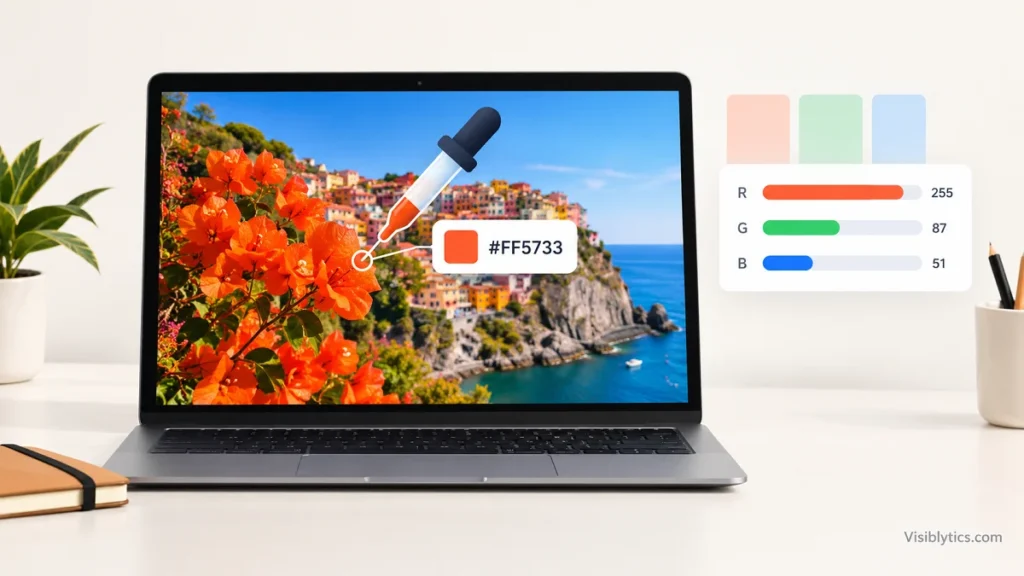
The fastest way to find the HEX color from an image is to upload it to an image color picker, click the spot you want, and copy the code. It takes a few seconds and needs no design software.
This guide starts with that method, then covers other ways to get a HEX code from a picture and the accuracy problems that cause a “wrong” color to show up.
I work with color values in web projects regularly, and one question keeps coming back: why doesn’t the code I picked match what I see? I’ll answer that too.
What a HEX Color Code Tells You
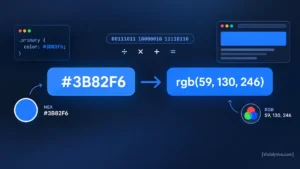
A HEX color code is a six character value written after a # symbol. It describes a color by its red, green and blue amounts. Each pair of characters is one channel, running from 00 (none) to FF (full).
So #FF0000 is pure red and #000000 is black. Take #7896C8 as a working example. The pair 78 is 120 red, 96 is 150 green, and C8 is 200 blue. That gives rgb(120, 150, 200), a soft blue.
HEX and RGB hold the same information in different notation. Six characters allow 16,777,216 possible colors. You will also see shorthand like #FFF, which expands to #FFFFFF, and eight character codes where the last pair sets opacity.
One point matters for everything below. An image does not store “a color” as a single thing. Every pixel has its own value, so when you pick a HEX color from an image, you are really reading one pixel.
How to Find the HEX Color From an Image Using an Online Image Color Picker
You upload the image, hover over the area you want, click, and copy the HEX value. That is the whole job. Using a browser-based picker means nothing to install and no account to set up.
Here is the process with the image color picker:
- Open the image color picker page.
- Upload the image you want to sample.
- Move your cursor over the exact area whose color you need.
- Click to select the color. The HEX code appears.
- Copy the code and paste it into your CSS, design file or notes.
Where you click matters more than most people expect. Click in the middle of a flat area, not on an edge or a highlight. If the color is important, click two or three nearby points and compare the codes.
Pick the Right Spot: Why One Click Can Give You the Wrong HEX Code
A single pixel is not always the color you perceive. Photos contain noise, gradients and compression artifacts, so neighboring pixels often differ by a few values even when they look identical.
Take a patch of sky in a JPEG. Three clicks might return #4A90D9, #4B91DA and #4A8FD8. Your eye sees one blue, but the numbers are not the same.
I handle this with a simple routine:
- Avoid edges, where colors blend with whatever sits next to them.
- Avoid specular highlights and deep shadows unless that is the color you want.
- Sample several points in the same area and choose the one in the middle of the range.
- Zoom in first if the tool allows it, so your click lands where you intend.
Edges are the most common cause of “off” results. Anti-aliasing blends a shape’s color with its background along the boundary, so a pixel there is a mix of both.
Other Ways to Get a HEX Code From an Image
Any program with an eyedropper can give you a HEX code. The online picker is the quickest option for a one-off job, but the other methods make sense when you are already working in that software.
Photoshop and GIMP. In Photoshop, press I to select the eyedropper, click the image, then open the foreground color box to read the HEX field. GIMP works the same way with its Color Picker tool, and it labels the HEX value as “HTML notation.”
Canva and browser-based editors. Most online editors put an eyedropper inside the color menu. The exact steps change between versions, so look for the picker icon next to the color swatch.
Browser DevTools. In Chrome, open the color picker on any color property in the Styles pane. It has an eyedropper that can sample any pixel visible on the page, including images.
Windows PowerToys. The Color Picker utility is opened with Win + Shift + C by default and copies the value to your clipboard. It reads colors from anywhere on your screen.
macOS. The built-in Digital Color Meter app shows the color under your cursor and can display values in hexadecimal.
The difference between these approaches is what they read. An image editor or online picker reads the file’s pixel data. A screen picker reads what your display is showing, which brings me to the next problem.
Why the HEX Code You Picked Might Not Match What You See
A mismatch usually comes from compression, color profiles or screen settings, not from a faulty tool. Knowing which one applies saves a lot of confusion.
Compression. JPEG compression changes pixel values slightly, especially around detail and edges. A PNG or the original file will give cleaner readings than a heavily compressed copy.
Color profiles. Images can be tagged with a profile such as sRGB or a wider gamut like Display P3. The same pixel values can look different depending on the profile, and a code picked from a wide gamut image may not look identical on a standard web page. For websites, sRGB is the safe target.
Screenshots and screen sampling. When you pick from your screen, you read what the display shows after the operating system’s color management. A screenshot of an image is not guaranteed to hold the same values as the original file. If accuracy matters, sample the original file.
Filters and overlays. Night mode, blue light filters and transparency effects can change what you see or sample on screen.
If a picked HEX code looks wrong, I check three things in order: is this the original file, is it a JPEG that has been re-saved several times, and what profile is it using.
Choose the Right Color Format: HEX, RGB or HSL
Use HEX when you need a compact code for CSS or a design tool. Use RGB when you need math or transparency in scripts, and HSL when you want to adjust lightness or saturation by hand. They describe the same color in different ways.
For #7896C8, the equivalents are:
- HEX: #7896C8
- RGB: rgb(120, 150, 200)
- HSL: roughly hsl(218, 42%, 63%)
If you are building a palette, HSL is the easiest to tweak. Raise the lightness for a hover state or lower it for a darker shade, and the hue stays the same.
What to Do With the HEX Code Once You Have It
Paste it wherever the color needs to be exact. In CSS that looks like color: #7896C8; or background-color: #7896C8;. Design tools accept the same code in their color fields.
If you are building a palette from one image, I usually pull five colors: a dominant color, a secondary color, an accent, a light neutral and a dark neutral. Write each code down with a label so you can reuse it later.
Check text contrast before you use a color for text. WCAG asks for a contrast ratio of at least 4.5:1 for normal body text, and a color pulled from a photo does not always meet that against your background.
To pull more colors from the same image, repeat the steps with the HEX color picker for images and note each code.
❓ Frequently Asked Questions
Can I find a HEX color from an image for free?
Yes. An online image color picker lets you upload a file, click a point and copy the HEX code at no cost, with no software needed.
How do I get the HEX code from a screenshot?
Upload the screenshot and click the color the same way. Keep in mind that a screenshot may not carry the exact values of the original image, so use the source file when precision matters.
Is the HEX code I pick exact?
It is the exact value of the pixel you clicked. That may differ slightly from the color the designer originally intended, especially in compressed JPEGs.
Can I get a HEX code from a logo?
Yes. PNG and SVG files give the cleanest results because flat colors stay intact. A logo saved as a JPEG may show small variations around edges.
What is the difference between HEX and RGB?
They are two notations for the same color. HEX writes the red, green and blue values in base 16, while RGB writes them as numbers from 0 to 255.
Final Thoughts
To find the exact HEX color from an image, upload it, click a clean flat area, and copy the code. Then sample a second point to confirm. If the result looks off, check the file type, the color profile and whether you sampled from the original.
That routine takes under a minute with the image color picker, and it avoids most of the mistakes I see people make.