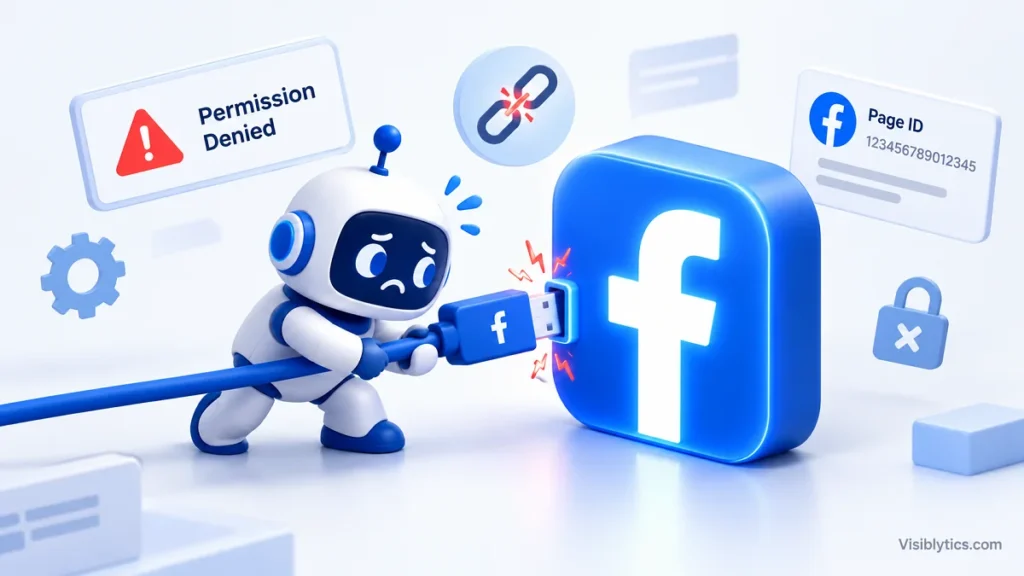
If your Facebook chatbot won’t connect to your page, the cause is almost always one of four things. The Facebook account you are logged in with may not hold the right role on the Page. The ID your tool is using may not be the Page ID. A permission may have been skipped during authorization. Or the Page may not be subscribed to your app, so messages never reach the bot.
These problems look the same from the outside. You get a blank Page list, a vague “could not connect” message, or a bot that says it is live but never answers. The fix depends entirely on which layer failed, so the fastest route is to check them in order instead of reconnecting repeatedly and hoping the result changes.
Below I go through each layer, what it looks like when it breaks, and how to confirm it in a minute or two.
What does it mean when a Facebook chatbot won’t connect to a Page?
It means the link between three things is broken: your Facebook account, your Page, and the app or platform running the bot. A Messenger chatbot is always tied to a Page, never to a personal profile, and the connection only works when all three agree on who you are, which Page you mean, and what the bot is allowed to do.
Most failures fall into two groups. In the first, the connection never completes. The Page does not appear in the list, or the authorization screen ends with an error. That points to roles, Business Portfolio ownership, or a skipped Page selection. In the second, the connection completes but the bot does not respond. That points to a missing webhook subscription, a missing messaging permission, an app still in development mode, or another app already handling the conversations.
Work out which group you are in before changing anything. It cuts the list of suspects roughly in half.
Why isn’t my Page showing up in the chatbot connection list?
The most common reason is that the Facebook account you logged in with does not have a high enough role on the Page. Having a Facebook account is not the same as managing a Page, and many tools only list Pages where your account has full administrative access.
Start with the basics. Open the Page settings and look at the people with Page roles. Your account should be listed as an Admin, or in the newer Pages experience, as someone with full control. Editor-level or task-limited access is often not enough for a platform that needs to manage messaging.
Next, check how you got access. Some platforms list only Pages where you hold direct Page access. Others list only Pages that belong to a Business Portfolio and where you have been assigned access there. I have seen both behaviors. A few community reports describe a Page that appeared only after it was removed from a Business Manager, and others describe the reverse, where a Page appeared only after being added to one. If your Page is not listed, check access in both places and make sure at least one route gives your account full control.
Then look at the authorization screen itself. When you log in with Facebook, there is usually a step that lets you choose which Pages the app can access. If you skipped it, accepted defaults, or selected a different Page, the tool will never see the one you want. Use the option to edit previous settings, tick the correct Page, and approve every permission the screen asks for. Unticking even one can leave you with a connection that looks successful and fails later.
Also confirm that the Page is published. An unpublished or restricted Page can be hidden from integrations. Finally, check you are logged in with the same Facebook profile you used earlier in the platform. Some tools reject a connection when a different profile is active, and the error is often phrased in a way that does not say so directly.
Are you using the wrong ID? Page ID, post ID and user ID explained
Yes, this is one of the most frequent hidden causes. A Facebook chatbot setup can ask for several different IDs, and they look alike because they are all long numbers. Only one of them identifies your Page.
- Page ID: identifies the Page itself. This is what a chatbot platform or API call usually needs.
- Personal profile ID: identifies your own account. A bot cannot be attached to this.
- Post ID: identifies a single post. For Page posts it often appears as two numbers joined by an underscore, where the first number is the Page ID.
- Page-scoped user ID: identifies a person who messaged your Page. It is specific to that Page and is not the same number across Pages.
- App ID: identifies the Facebook app connected to your bot, which is a separate object from your Page.
Mixing these up produces confusing results. Paste a post ID where a Page ID belongs and the tool may return an error or silently match nothing. Paste an app ID and you get a different failure again. If you need a quick way to tell them apart, a Facebook Page ID finder will return the number for a Page URL, so you can compare it against what you pasted into your chatbot settings.
The page-scoped detail matters more than most people expect. According to Meta’s Messenger Platform FAQ, user IDs on the Messenger Platform are specific to a Page, and using a valid user ID with a Page access token that belongs to a different Page will not work. If you manage several Pages, this mismatch is easy to create by accident, especially when you copy tokens between test and production setups.
The check is simple. Confirm that the Page ID, the Page access token, and any user IDs in your calls all belong to the same Page. If even one comes from another Page, that is your fault line.
Which Facebook permissions does a Messenger chatbot need to connect?
The central permission is pages_messaging, which allows an app to send and receive messages on behalf of a Page. Platforms that connect through Facebook Login usually also request Page listing and Page management permissions so they can see which Pages you manage and set up the subscription for you.
During authorization you will see a list of requested permissions. Leaving any of them switched off is a common cause of failures that appear later, not at the time of connecting. A bot may connect, show a green status, and then fail on the first message because the messaging permission was never granted. If you suspect this, remove the app from your Facebook business integrations and authorize it again, this time approving everything.
If you are building your own app instead of using a hosted platform, there is another layer. Meta’s documentation describes pages_messaging as something an app goes through review for before it can serve people outside its own team. Until then the app operates in development mode, where it generally responds only to people who hold a role on the app, such as administrators, developers, and testers. A bot that answers you but ignores everyone else is very often in this state.
One user in an SAP community thread described exactly this: the app was in development mode, so the bot answered messages from the owner and nothing was expected beyond that. If your colleague tests the bot and sees silence, check the app mode and their app role first, before touching anything else.
Why does my chatbot connect but never reply to messages?
The usual cause is that the Page is not subscribed to your app for message events, or the webhook is not receiving them. Connecting an account and receiving messages are two separate steps, and the second one can fail while the first succeeds.
Check these in order:
- Webhook status. The callback URL must be reachable and verified, and the verify token must match what your server expects. If verification failed, Meta never sends events.
- Page subscription. The Page must be subscribed to the app, and the subscription must include message-related fields. In the Messenger settings of a Meta app, the access tokens section shows each Page and lets you add a subscription. A Page with no subscription produces no events at all.
- Messaging turned on for the Page. In Meta Business Suite or Page settings, confirm that messaging is active. If the Page has messaging disabled, there is nothing for the bot to answer.
- Another app handling the thread. Only one app can be the primary receiver of conversations for a Page. If an older tool, a previous bot, or a live chat plugin holds that role, your new bot may never get the messages. Look at which apps are connected to the Page and remove ones you no longer use.
- Required reconnection. Some platforms recommend unpublishing the bot for a few seconds and publishing it again on the Page, which forces Facebook to refresh the routing of messages.
A pattern reported in several community threads: messages sent to the Page do not appear in the platform logs at all. That tells you the problem is upstream, at the Facebook subscription or webhook level, not inside your bot logic. There is no point editing flows until events show up in the logs.
Can a password change or expired token break the connection?
Yes. If you changed your Facebook password, logged out of all sessions, or revoked the app from your account settings, the access token your platform stored may no longer be valid. The platform can keep showing the old connection while every request behind it fails.
The fix is to reconnect from scratch. Refresh the list of authorized Pages inside your chatbot platform, reauthorize with Facebook, and tick the Page again. If the Page still does not appear, remove the app from your Facebook account’s connected business integrations first, then reauthorize so the platform requests fresh permissions.
Meta also runs periodic data use checks on apps. One community answer pointed out that if the check-up is left incomplete, the app can be disconnected. If your bot stopped working with no changes on your side, open the app dashboard and look for pending actions or notices before assuming something else is wrong.
Which error message points to which cause?
Error text varies by platform, but most messages map to a small number of causes. This table is a shortcut.
| What you see | Most likely cause | First thing to check |
|---|---|---|
| Page missing from the list | Role too low, or Page not selected during authorization | Page roles, then edit previous Facebook login settings |
| “Looks like you’re logged in with another profile” | Different Facebook account than the one linked earlier | Log out of Facebook, log back in with the original profile |
| “Page ineligible” or messaging permission errors | Page restriction, missing permission, or Page ownership conflict | Page quality status and permissions granted at login |
| Connects, then reverts to disconnected | Stored token invalid, or another app holds the connection | Remove old apps from the Page, reauthorize |
| Bot answers you, not other people | App in development mode | App mode and tester roles |
| No messages in logs | Webhook or Page subscription problem | Webhook verification and subscribed fields |
| Calls fail for valid users | Page access token from a different Page | Match Page ID, token, and user ID to one Page |
If your message does not match any row, search for the exact wording along with the platform name. Error text is often unique enough to find a specific cause.
Facebook chatbot Page connection checklist, in order
Use this order. Each step rules out one layer, and skipping ahead usually wastes time.
- Confirm you are logged in with the Facebook profile that has full control of the Page.
- Check Page roles in the Page settings and Business Portfolio access, if one is involved.
- Confirm the Page is published and has no restrictions.
- Find your Facebook Page ID and compare it with the ID in your chatbot settings. Make sure it is not a post, profile, or app ID.
- Remove the app from your Facebook business integrations, then reauthorize and tick the correct Page.
- Approve every permission on the authorization screen, including messaging.
- Check that messaging is active on the Page.
- Verify the webhook and confirm the Page is subscribed to message events.
- Check the app mode and, if you are testing, make sure testers hold a role on the app.
- Remove other apps that may be receiving messages for the Page.
- Unpublish the bot briefly, publish it again, and send a test message from a role-holding account.
If you reach the end and nothing changed, collect the exact error text, the Page ID, and the time of your last attempt before contacting the platform’s support. Those three details let a support team look up the attempt in their logs.
How to stop your Facebook chatbot from losing its Page connection again
Most repeat failures come from changes around the bot, not inside it. A password reset, a role change, a Page moved to a different Business Portfolio, or a second app added to the same Page can each break a connection that worked for months.
A few habits help. Keep one account with full control as the owner of the connection, instead of switching between several. Record the Page ID, app ID, and the date permissions were last granted, so you can tell them apart later. Remove apps you no longer use from the Page. And whenever you change a role or move a Page between portfolios, test the bot from a second account straight afterwards, not weeks later when a customer reports silence.
If your Facebook chatbot won’t connect to your page again after a change like that, go back to the checklist above and start at step one. In my experience the cause sits in the first four steps more often than people expect, and it is nearly always an access or ID problem, not a bug in the bot.